Cloud Storage
The Y8 SDK allows your game to store player-specific data in the cloud, enabling players to access their progress across devices.
Cloud Storage is intended for small amounts of persistent data such as save games, preferences, settings, and other player-specific information.
Authentication required
Cloud Storage requires the player to be authenticated.
Storage Guidelines
- Save only the data your game needs to persist.
- Use JSON for structured game data where appropriate.
- Individual values must not exceed 30 KB.
- Avoid saving data too frequently.
- If your game supports auto-save, throttle save requests.
- Prefer batching multiple changes into fewer save operations.
Save Data
Save player data to Cloud Storage.
y8Sdk.saveData({
    key: "save",
    value: JSON.stringify(gameState),
    retries: true
})
.then(() => {
    console.log("Game saved");
})
.catch((error) => {
    console.error(error.message ?? error);
});
Called while nobody is signed in, the save rejects with a plain string rather
than an error object — see Handling errors. The
same applies to loadData() and removeData().
Parameters
| Property | Type | Required | Description |
|---|---|---|---|
key |
string |
Yes | Storage key. |
value |
string |
Yes | Value to store. Maximum size: 30 KB. |
retries |
boolean |
No | Automatically retry temporarily rejected saves. Default: true. |
Automatic retries
The server accepts one write per key every five seconds: a save to a key that was written less than five seconds earlier is turned away. By default the SDK handles that for you: it retries up to five times, three seconds apart, before giving up.
A save with an empty value is turned away too. Retrying cannot fix that, so it fails after the full round of retries.
A save that survives all of that fails with the code "save_rejected",
which is worth distinguishing from a network error — it means the server
deliberately refused, not that the connection dropped:
y8Sdk.saveData({
    key: "save",
    value: JSON.stringify(gameState),
}).catch((error) => {
    if (error.code === "save_rejected") {
        tellPlayerSaveFailed();
    }
});
Because retries take time, a save can be in flight for up to fifteen seconds before it fails. If you would rather find out immediately and do your own buffering, switch them off:
y8Sdk.saveData({
    key: "save",
    value: JSON.stringify(gameState),
    retries: false
});
JsResponse<SetData> response =
    await Y8.Instance.SaveDataAsync(
        "test_file_key",
        new SaveFileData
        {
            stringValue = "Test save",
            boolValue = true,
            floatValue = 0.01f
        }
    );

if (response.IsSuccess)
{
    Debug.Log("Game saved");
}
Parameters
| Parameter | Type | Required | Description |
|---|---|---|---|
key |
string |
Yes | Storage key. |
value |
string or serializable class |
Yes | Data to save. |
The C3 integration serializes the supplied value as JSON before sending it to Y8.
For structured data, you can use a Construct 3 Dictionary:
saveData → On clicked

    Dictionary → Add key "score" with value score
    Dictionary → Add key "coins" with value coins
    Dictionary → Add key "level" with value level

    Functions → Call saveData
        saveKey: "saveGame"
        saveItem: Dictionary.AsJSON


Y8.saveData(
    "save",
    gameState
);
The SDK automatically converts the game data to JSON before saving it.
Nothing is returned and there is no callback, so your game is not told whether the save succeeded.
Parameters
| Parameter | Type | Required | Description |
|---|---|---|---|
key |
String |
Yes | Storage key. |
gameState |
Dynamic |
Yes | Game data to save. |
Load Data
Retrieve previously saved player data.
y8Sdk.loadData({
    key: "save"
})
.then((value) => {

    if (value) {
        const gameState = JSON.parse(value);
    }

})
.catch((error) => {
    console.error(error.message ?? error);
});
If no value exists for the specified key, the Promise resolves with null.
JsResponse<SaveFileData> response =
    await Y8.Instance.LoadDataAsync<SaveFileData>("test_file_key");

if (response.IsSuccess && response.Data != null)
{
    Debug.Log(response.Data.stringValue);
}
If no value exists for the specified key, IsSuccess is still true and the
returned data is null.
getData → On clicked

    Functions → Call loadData
        saveKey: "saveGame"


When saved data is found, the OnlineDataKeyFound function is triggered.
Construct 3 provides a 'getOnlineSaveData' function for retrieving the data loaded by the most recent loadData() call.

The function returns the loaded data as a JSON string.
You can use the JSON with a Construct 3 Dictionary to retrieve individual values.

On function OnlineDataKeyFound

    Dictionary → Load from JSON string
                 Functions.getOnlineSaveData
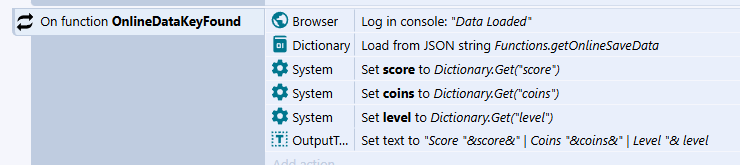
When the key has no saved data, nothing is triggered — set default values for
your game variables before calling loadData. If loading fails, the
OnlineKeyNotFound function is triggered. If the player is not signed in,
loadData does nothing.

Y8.loadData(
    "save",
    function(gameState:Dynamic):Void
    {
        if (gameState != null)
        {
            trace(gameState);
        }
    }
);
The SDK automatically parses the saved JSON data before passing it to the callback.
The callback is called only when saved data exists and parses as JSON. It is
not called at all when the key has no data, when loading fails, or when the
player is not signed in — so set your defaults before calling
Y8.loadData() rather than waiting for a null.
Remove Data
Delete previously saved data.
y8Sdk.removeData({
    key: "save"
})
.then(() => {
    console.log("Save removed");
})
.catch((error) => {
    console.error(error.message ?? error);
});
JsResponse<SetData> response =
    await Y8.Instance.RemoveDataAsync("test_file_key");

if (response.IsSuccess)
{
    Debug.Log("Save removed");
}
RemoveData → On clicked

    Functions → Call removeData
        key: "saveGame"


The player must be authenticated before removing saved data.
Y8.removeData("save");
Best Practices
- Save only essential player data.
- Use JSON for structured data where appropriate.
- Keep saved values below 30 KB.
- Avoid saving after every gameplay event.
- Prefer batching changes into fewer save operations.
- Use a consistent storage key for your game's save data.
- Ensure the player is authenticated before using Cloud Storage.
- Handle save and load errors appropriately.
- Throttle auto-save requests to avoid unnecessary requests.
Platform-Specific Notes
Values are stored as strings. Use JSON.stringify() when saving objects and JSON.parse() when loading them.
Serializable classes can be used for structured Cloud Storage data.
Structured data can be stored using JSON, such as Dictionary.AsJSON.
The SDK automatically converts game data to JSON when saving and parses it when loading.