Images
The Y8 SDK allows your game to upload images to the authenticated player's Y8 profile.
This can be used for screenshots, custom creations, achievements, level designs, or other memorable moments from your game.
Authentication required
Image uploads require the player to be authenticated.
Submit an Image
Upload an image to the authenticated player's Y8 profile.
The image must be provided as a Base64 Data URL.
Creating an Image from a Canvas
const picture = document
    .getElementById("gameCanvas")
    .toDataURL("image/png");
Creating an Image from a Blob or File
function toDataURL(blob) {
    return new Promise((resolve, reject) => {

        const reader = new FileReader();

        reader.onload = () => resolve(reader.result);
        reader.onerror = reject;

        reader.readAsDataURL(blob);

    });
}

const picture = await toDataURL(imageBlob);
Upload the Image
y8Sdk.submitImage({
    picture: picture
})
.then((imageUrl) => {

    console.log("Image uploaded:", imageUrl);

})
.catch((error) => {

    console.error(error.message ?? error);

});
Called while nobody is signed in, submitImage() rejects with a plain string
rather than an error object — see Handling errors.
When Y8 refuses the image itself, the error's message may not say why —
for an empty picture it is just "Image submission failed".
Parameters
| Property | Type | Required | Description |
|---|---|---|---|
picture |
string |
Yes | Base64 Data URL representing a PNG, JPEG or GIF image. |
Response
When the upload succeeds, the Promise resolves with the public URL of the stored image. That is a resized copy — scaled down to fit within 960×640, with metadata removed — not the original you uploaded.
const imageUrl = await y8Sdk.submitImage({
    picture
});

console.log(imageUrl);
The returned URL can be stored or shared by your game.
Supported Formats
image/pngimage/jpegimage/gif
Other formats, such as WebP, are rejected.
Capture an image and upload it to the player's Y8 profile.
Texture2D screenshotTexture = null;

StartCoroutine(TakeScreenshotCoroutine());

while (screenshotTexture == null)
{
    await Task.Yield();
}

JsResponse<SavedScreenshot> response =
    await Y8.Instance.SubmitImageAsync(screenshotTexture);

if (response.IsSuccess)
{
    Debug.Log(response.Data.imageUrl);
}

IEnumerator TakeScreenshotCoroutine()
{
    yield return new WaitForEndOfFrame();
    screenshotTexture = ScreenCapture.CaptureScreenshotAsTexture();
}
Parameters
| Parameter | Type | Required | Description |
|---|---|---|---|
screenshotTexture |
Texture2D |
Yes | Image to upload. It is always sent as a JPEG. |
Response
When the upload succeeds, the returned response contains the public URL of the stored image — a resized copy, scaled down to fit within 960×640.
if (response.IsSuccess)
{
    Debug.Log(response.Data.imageUrl);
}
| Field | Type | Description |
|---|---|---|
success |
bool |
Whether the upload succeeded. |
imageUrl |
string |
URL of the stored image; empty on failure. |
message |
string |
Why the upload failed; empty on success. |
Use Construct 3's Take snapshot of canvas action to capture the game canvas as a PNG.
Screenshot → On clicked
           → System: Take snapshot of canvas
              Format: PNG
              Quality: 75

Then handle the canvas snapshot:
System → On canvas snapshot
       → Call sendScreenshot
          image: CanvasSnapshot

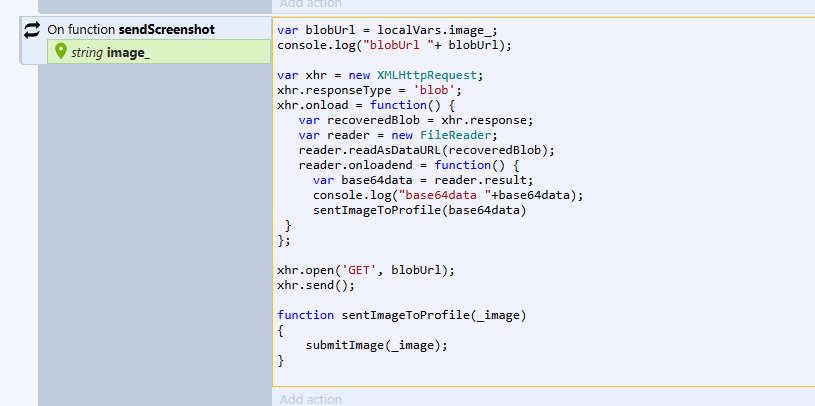
The C3 integration automatically processes the captured image and uploads it to the player's Y8 profile.
The image is converted to the required format internally before being submitted to Y8.
The event sheet is not told the result: no URL is returned and no function is triggered on success or failure.
Upload an image using Y8.submitImage().
The image must be provided as a Base64 Data URL.
Y8.submitImage(picture);
Parameters
| Parameter | Type | Required | Description |
|---|---|---|---|
picture |
String |
Yes | Base64 Data URL representing the image to upload. |
For example:
var picture:String = "data:image/png;base64,...";

Y8.submitImage(picture);
Nothing is returned and there is no callback: your game is not told the image's URL, or whether the upload succeeded.
Authentication
Image uploads require an authenticated player.
Ensure the player is authenticated before calling submitImage().
Ensure the player is authenticated before calling SubmitImageAsync().
If the player is not logged in, the image upload is not performed.
Ensure the player is authenticated before calling Y8.submitImage().
Best Practices
- Upload only images that are meaningful to the player.
- Ensure the player is authenticated before uploading.
- Use PNG, JPEG or GIF images supported by Y8.
- Prefer PNG for screenshots and pixel art (Unity always uploads JPEG).
- Convert images to the required format before uploading.
- Avoid uploading screenshots unnecessarily.
- Handle upload errors appropriately.
Platform-Specific Notes
Use JSON-compatible data and Base64 Data URLs when preparing images for upload.
Capture or create the Texture2D before calling SubmitImageAsync().
Use the Take snapshot of canvas action and handle the resulting canvas snapshot.
Provide the image as a Base64 Data URL.