Getting started
The Y8 SDK allows you to integrate Y8 platform services into your game, including authentication, advertisements, cloud storage, achievements, leaderboards, and more.
Note
Before installing the SDK, make sure you have created your game in the Y8 Developer Portal and obtained your App ID and Game ID.
Installation
Choose your platform to install the Y8 SDK.
Include the Y8 SDK in the <head> section of your HTML:
<head>
    <script src="https://cdn.y8.com/minimal-sdk/2-0/y8.min.js" async></script>
</head>
Tip
We recommend to download the demo project to understand how the Y8 SDK is integrated and used.
Download the latest Unity SDK package.
Import the downloaded .unitypackage into your Unity project.
After importing:
- Open your Unity project.
- Locate Y8_Root under
Assets > Y8. - Add the Y8_Root prefab to your scene.
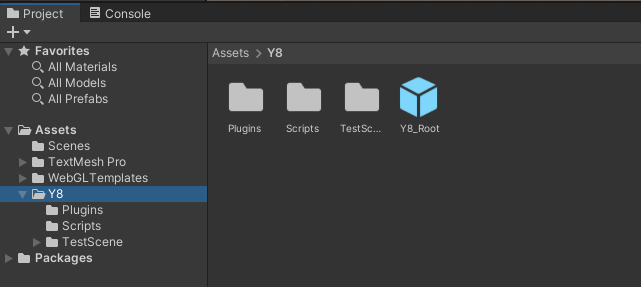
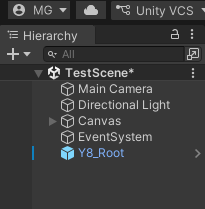
Tip
We recommend reviewing the Unity SDK/demo project to understand how the Y8 SDK is integrated and used.
Download the C3 example project.
The example project contains the JavaScript bridge used by the integration.
To integrate it:
- Open the C3 example project.
- Copy
main.js. - Add
main.jsto your Construct 3 project, and set its Purpose to Import for events in its properties. Without that, the Y8 functions are not reachable from your event sheets and the SDK does nothing. - Copy the
y8Apievent sheet into your project.
Tip
We recommend reviewing the example project to understand how the Y8 SDK is integrated and used.
Download the latest Haxe SDK package.
Extract the package and copy the y8 folder into your project's Source directory.
Example:
Source/
├── Main.hx
└── y8/
    ├── Y8.hx
    └── js/
        └── Y8JS.hx
The y8 folder does not load the SDK itself. Add the SDK script to your
own project.xml as a dependency, so Lime injects it into the generated
HTML:
<dependency name="https://cdn.y8.com/minimal-sdk/2-0/y8.min.js" />
Without it, Y8.init() never completes and every call is ignored.
Tip
We recommend reviewing the Haxe SDK/demo project to understand how the Y8 SDK is integrated and used.
Finding Your App ID and Game ID
After creating your game in the Y8 Developer Portal:
- Open your game.
- Navigate to SDK Initialization.
- Copy your App ID and Game ID.
Your App ID identifies your application. The Game ID is required when your game uses advertisements.
Note
These credentials are used when configuring the SDK for your selected platform.
Initialization
Initialize the SDK once during your game's startup.
Initialize the SDK once it has loaded:
<script>
let y8Sdk;

window.addEventListener("y8sdk.ready", function () {
    y8Sdk = y8.sdk();

    const appConfig = {
        appId: "<app id>",
        autoLogin: true
    };

    // adConfig is optional — omit it if your game doesn't use ads
    const adConfig = {
        gameId: "<game id>",
        preloadAdBreaks: "on",
        sound: "on",
        onReady: () => {}
    };

    y8Sdk.init(appConfig, adConfig);

    y8Sdk.onAuth((user, error) => {
        if (error) {
            console.error(error);
            return;
        }

        console.log(user);
    });
}, { once: true });

// Handle the case where the SDK already loaded
if (window.y8 && window.y8.emitReadyEvent) {
    window.y8.emitReadyEvent();
}
</script>
Keep the last three lines
The script tag is async, so it may finish loading either before or
after this code runs. If it got there first, y8sdk.ready has already
fired and your listener will never run — the SDK would sit there
initialized by nobody, with no error to tell you so.
Calling emitReadyEvent() asks the SDK to announce itself again, which
covers that case. It is safe when the event has not fired yet, so it is
not a branch you need to reason about — keep both halves and the
ordering stops mattering.
This is a race, so a build that works every time locally can still fail in production. It is the most common reason for an SDK that "does nothing".
Declare y8Sdk with let outside the listener and assign it inside, as
above, so the rest of your game can reach it.
Note
If your game does not use advertisements, you can omit the adConfig object.
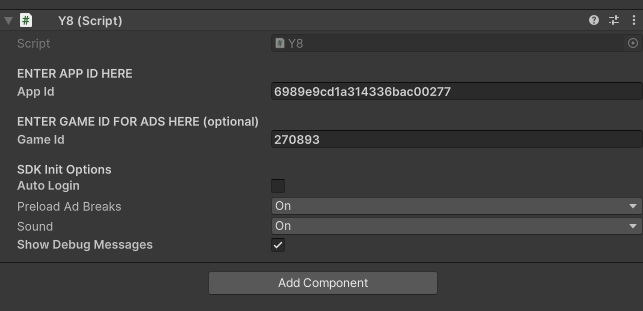
After adding the Y8_Root prefab to your scene, configure the Y8 component in the Inspector.
Enter your:
- App ID
- Game ID if your game uses advertisements
Add the initialization function to the On start of layout event:
init(
    runtime,
    runtime.globalVars.AppID,
    runtime.globalVars.GameID
);
To disable automatic login:
init(
    runtime,
    runtime.globalVars.AppID,
    runtime.globalVars.GameID,
    false
);
Initialize the SDK during application startup:
Y8.init(appId, gameId, updateAuthUI);
Configuration
Configure the SDK according to your platform.
Application Configuration
| Property | Type | Required | Description |
|---|---|---|---|
appId |
string |
Yes | Your Y8 application identifier. |
autoLogin |
boolean |
No | Automatically authenticate returning players. Default: true. |
Advertisement Configuration
| Property | Type | Required | Description |
|---|---|---|---|
gameId |
string |
Yes | Your Y8 game identifier. Required when using advertisements. |
preloadAdBreaks |
string |
No | Advertisement preloading behavior: "on" (default) or "auto". Applies only to games whose ads run through AdSense for Platforms; ignored otherwise. |
sound |
string |
No | Advertisement audio behavior: "on" (default) or "off". Applies only to games whose ads run through AdSense for Platforms; ignored otherwise. |
onReady |
function |
No | Called when the advertisement system is ready. |
Configure the Y8 component:
| Setting | Description |
|---|---|
| App ID | Your Y8 application identifier. |
| Game ID | Your Y8 game identifier. Required when using advertisements. |
| Auto Login | Automatically authenticate returning players. |
| Preload Ad Breaks | Advertisement preloading behavior: on (default) or auto. Applies only to games whose ads run through AdSense for Platforms. |
| Sound | Advertisement audio behavior: on (default) or off. Applies only to games whose ads run through AdSense for Platforms. |
Store your credentials in Construct 3 global variables:
| Variable | Description |
|---|---|
AppID |
Your Y8 application identifier. |
GameID |
Your Y8 game identifier. |
The Y8.init() method accepts the following parameters:
| Parameter | Type | Required | Description |
|---|---|---|---|
appId |
String |
Yes | Your Y8 application identifier. |
gameId |
String |
Yes | Your Y8 game identifier. Required when using advertisements. |
authCallback |
Bool->String->Void |
Yes | Called when the player's authentication state changes. |
Authentication
The SDK provides authentication functionality for Y8 players.
Register an authentication callback:
y8Sdk.onAuth((user, error) => {
    if (error) {
        console.error(error);
        return;
    }

    console.log(user);
});
If autoLogin is enabled, returning players are authenticated automatically.
To authenticate manually:
y8Sdk.login();
If Auto Login is enabled, the SDK automatically attempts to authenticate the player.
To authenticate manually:
JsResponse<Y8User> response =
    await Y8.Instance.LoginAsync();

if (response.IsSuccess)
{
    Debug.Log($"Logged in as {response.Data.nickname}");
}
Subscribe to authentication errors:
private void OnEnable()
{
    Y8.Instance.OnAuthError += HandleAuthError;
}

private void OnDisable()
{
    Y8.Instance.OnAuthError -= HandleAuthError;
}

private void HandleAuthError(AuthError error)
{
    Debug.LogError($"Authentication failed: {error.message}");
}
The C3 integration handles authentication through the initialization process.
Use the following global variables to determine the authentication state:
| Variable | Description |
|---|---|
isLogin |
true when the player is authenticated. |
userNameY8 |
Authenticated player's nickname, or Guest. |
y8SdkReady |
true once the SDK has loaded and init() has been called. Sign-in may not have finished yet; isLogin changes when it does. |
To authenticate manually:
login();
Provide an authentication callback during initialization:
private function updateAuthUI(
    loggedIn:Bool,
    username:String
):Void
{
    if (loggedIn)
    {
        trace("Welcome " + username);
    }
    else
    {
        trace("Player is not signed in.");
    }
}
To authenticate manually:
Y8.login();
Note
Authentication is performed without requiring the game page to reload.
If authentication cannot be completed, handle the failure gracefully and allow the player to continue using the game whenever possible.
Accessing the SDK
After initialization, access Y8 functionality through the SDK instance or class for your platform.
y8Sdk.login();
y8Sdk.logout();
y8Sdk.getUser();
Import the Y8 namespace:
using Y8API;
Access SDK functionality through:
Y8.Instance
Use the exposed Y8 functions from your Construct 3 Event Sheet:
login();
logout();
getUser();
All functionality is available through the static Y8 class:
Y8.login();
Y8.logout();
Y8.getUser();
Handling errors
Calls fail for ordinary reasons — the player is offline, a session expired, a server had a bad day. Handle them where the player can see the result, and prefer retrying quietly over interrupting play.
Asynchronous methods reject on failure, so attach a .catch():
y8Sdk.saveData({ key: "save", value: data })
    .catch((error) => {
        console.error(error);
    });
Two different failure shapes
Failures that come back from the server — network problems, expired
sessions, rejected data — arrive as an error object with message and
sometimes code.
Failures caused by calling the method wrongly arrive as a plain
string instead. These have no message property, so a handler written
as error.message logs undefined and tells you nothing:
// Logs "undefined" when the failure is a plain string.
.catch((error) => console.error(error.message));

// Logs both kinds.
.catch((error) => console.error(error.message ?? error));
You will meet the string form while wiring your integration up, and the
object form in the wild. Log the error itself, not just its message,
and both are readable.
The string form covers a small, fixed set of mistakes:
| You will see | When |
|---|---|
The token can't be null. |
A method needing a signed-in player was called while nobody was signed in. |
User must be logged in to open a profile. |
openProfile() was called while nobody was signed in. |
Ads not initialized. … |
showAd() was called without ad configuration at startup. (requestBanner() reports the same mistake as an error object with code bannersUnavailable.) |
Not implemented (type: …) |
showAd() was given a type other than start, pause, next, browse or reward. |
embedLeaderboard: target element not found (…) / embedAchievements: … |
An embed was pointed at an element that does not exist. These two methods are not asynchronous, so this is thrown rather than rejected — .catch() never sees it. Wrap the call in try/catch. |
Two error codes are worth checking for by name, because they mean something
specific you can act on. Compare error.code against the string:
| Code | Meaning |
|---|---|
"auth_error" |
Sign-in reached Y8, but completing it failed. This arrives as the error argument of your onAuth callback, not as a rejection. A sign-in popup that was closed or blocked arrives there too, as an error with no code and the message Popup was closed before completing the flow. or Failed to open popup window. |
"save_rejected" |
A save was refused by the server on every attempt — the first attempt and five retries, 3 s apart (about 15 s), or the single attempt when retries: false. |
Calls return a JsResponse<T>. Check IsSuccess before reading Data:
JsResponse<SetData> response =
    await Y8.Instance.SaveDataAsync("save", data);

if (!response.IsSuccess)
{
    Debug.LogWarning("Save failed");
    return;
}
Failures do not throw, but Data is null when the player is not signed
in or the SDK is not ready yet, so reading response.Data without checking
IsSuccess first throws a NullReferenceException.
JsResponse<T> carries only IsSuccess and Data. Where a reason for the
failure is available it is on Data: errormessage on score and
achievement results, error on loaded data, message on image
submissions. Save and remove results carry no reason.
Functions that fetch something call back in the event sheet either way:
onLeaderboardsLoaded, onScoresLoaded, onAchievementsLoaded,
onUserReloaded, onTokenRefreshed and onLocaleLoaded receive an empty
string when the request failed. Check that a value arrived before using it,
and keep the game playable when it did not.
loadData calls OnlineDataKeyFound when data was loaded and
OnlineKeyNotFound when the request failed. Nothing is called when the key
holds no data, or when nobody is signed in.
Saving, submitting scores, awarding achievements, removing data, sending
screenshots and opening the profile report failures only in the browser
console — no event-sheet function runs. To tell the player a save failed,
you need to add a call of your own to the failure branch of that function
in main.js.
Calls report through their callbacks rather than throwing. For
getLeaderboards, getScores, getAchievements and getLocale the
callback runs whether or not the request succeeded, with null on failure;
checkBlacklist receives false. Check that a value arrived before using
it.
loadData calls back only when data was loaded. Its callback does not run
when the request failed, when the key holds no data, or when nobody is
signed in.
saveData, saveScore, awardAchievement, removeData, submitImage and
openProfile take no callback, so their failures appear only in the
browser console.
Best Practices
- Initialize the SDK only once.
- Wait for
y8sdk.readybefore callingy8.sdk(), and keep theemitReadyEvent()fallback for when the SDK loaded first. - Store the SDK instance in a shared variable.
- Do not call SDK methods before initialization completes.
- Handle authentication errors gracefully.
- Add Y8_Root only once.
- Configure the App ID before running the game.
- Provide a Game ID when using advertisements.
- Enable Auto Login unless manual authentication is required.
- Handle authentication errors.
- Prefer asynchronous SDK methods with
await. - Always check
response.IsSuccess.
- Initialize the SDK only once.
- Wait for
y8SdkReadybefore using SDK functions. - Use
isLoginto determine authentication state. - Use
userNameY8when displaying the player's name. - Allow the game to remain playable when authentication is unavailable.
- Initialize the SDK only once.
- Call
Y8.init()before using SDK functionality. - Provide an authentication callback.
- Pass an empty Game ID when advertisements are not used.
- Handle authentication failures gracefully.